Category Archives: Video included

The secret to a wonderful black background with moody lighting

Mastering the black background

• Mastering the black background •
With very little practice you can get a perfect black background and moody lighting.

The eye is captured by solid black.

It provides a really focussed experience for the viewer. Low key and solid black backgrounds provide a wonderful insight on detail and features. If you get this right it provides an excellent insight for portraits and helps many other aspects of your photography. This is a technique I use for product photos, still life, landscapes and flower photography.

Simplicity itself

The technique involves using a bright light (off camera flash) to overpower the ambient light. The steps are simple…

  • Set your camera to its lowest ISO setting (around ISO 100) – the sensor is least sensitive to light.
  • Set your aperture to a high f number (small aperture = low light), say f11, or higher so that the amount of light your camera lets in is very small.
  • Take a test shot to ensure your screen is black – you want nothing to show.
  • Shoot with a diffused off-camera flash at full power using a narrow beam.

This simple technique is relying on extreme underexposure. Basically you are underexposing the whole scene to blackness. But then you are introducing a very narrow beam of brightness that overcomes a limited area of the underexposed shot. This leaves your highlighted spot on the subject in a moody light with the rest in black.

Photography Technique: The Invisible Black Background

Glyn Dewis  External link - opens new tab/page introduces the technique on video. Notice the way the umbrella is creating a focussed narrow beam of light. You can do the same thing with “barn door” lights or cards either side of a reflected flash. Enjoy the video…


By Damon Guy (author and editor)

Netkonnexion

Damon Guy (Netkonnexion)

Damon is managing editor of Photokonnexion.com with professional experience in photography, writing, image libraries, and computing. He is also an experienced, webmaster and a trained teacher. Damon runs regular training for digital photographers who are just starting out.
See also: Editors ‘Bio’
By Damon Guy :: Profile on Google+

Three rules of lighting… simple, but effective

• Three Rules of Lighting •

• Three Rules of Lighting •

The simple explanations are the best.

Here at Photokonnexion we try hard to provide simple explanations for the things we all want to learn about our favourite subject. If you think anything is too complicated let us know on our Contact Us page or leave a comment below the article.

Well, here is a video in the spirit of simple explanations. I really do not need to explain before you see it… just watch and enjoy.

More after this…

find out more...Photokonnexion tips by email
Enjoying this article? Please sign up for our
Tips by email service.
                                                Find out more

Three Rules of Lighting for Photography

“We talk about the three important rules regarding the behaviour of light. As photographers we can use these rules to achieve the type of lighting we want, including the look of soft light.” – Ed Verosky
© Ed Verosky 2012  External link - opens new tab/page

For more background on lighting

Don’t forget to check out our Light and Lighting resource pages and especially the links on Hard Light and Soft Light. These are essential to the understanding of light.

All our resources can be found in the menu at the top of the page.


By Damon Guy (author and editor)

Netkonnexion

Damon Guy (Netkonnexion)

Damon is managing editor of Photokonnexion.com with professional experience in photography, writing, image libraries, and computing. He is also an experienced, webmaster and a trained teacher. Damon runs regular training for digital photographers who are just starting out.
See also: Editors ‘Bio’
By Damon Guy :: Profile on Google+


Can you write? Of course you can!
Write for Photokonnexion...

We would love to have your articles or tips posted on our site.
Find out more…
Write for Photokonnexion.

The simple secrets behind good food photography

Food for Her World Vietnam magazine.

Food for Her World Vietnam magazine.
Food styling by Dang Phuong
Photography by Mads
Food for Her World Vietnam magazine. Photography by Mads • on FlickrExternal link - opens new tab/page


We all love good looking food…

So what is it that makes great food photography? I love to cook and make tasty food. But great cooks also have a skill with presentation. It is the presentation which really makes great food shots too.

Food photography seems to be centred on three things – good looking food composition; great light and picking the right focus/centre of interest. Duh! Wait a minute, isn’t that pretty much photography summed up all over? OK, I jest. Good food photography does seem to require a particular approach.

Here are some of my observations on food shots. You should look to achieve…

  • Understanding and practice with small-sized and table-top compositions.
  • A working knowledge of lighting at the table-top scale.
  • Simple natural light from one source (window).
  • Able to use reflectors/black cards to shape the light.
  • Simple centre of interest in the shot.
  • Carefully chosen depth of field.

And with the food itself…

  • Natural and where possible bright colours.
  • The colour mix should work together.
  • Avoid odd clashes of colour.
  • The food combinations should be simple and few.
  • Focus on the main interest.
  • Use bokeh sparingly.
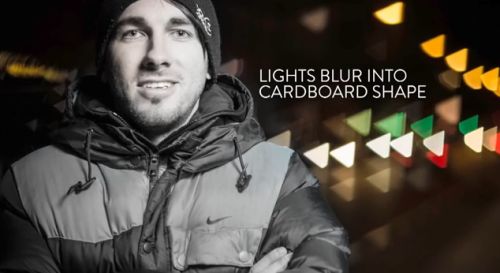
  • Avoid highlight bokeh spots where possible.
  • Try to emphasis the texture of the food.
  • Use simple but eye catching cutlery and plates.
  • Avoid cluttering the shot with too much food.

More after this…

Book recommendation:

Food Photography:
From Snapshots to Great Shots

Simple advice on lighting including great diagrams. The pictures include camera settings. Excellent advice on setting up a table-top studio which was also inexpensive to do. Lots of tricks and techniques like the pros use. Great presentation ideas.

Food Photography Tips – Video

In this video we look a range of ways to look at and shoot food. It is a great introduction to the basics and covers a wide range of important points.


By Damon Guy (author and editor)

Netkonnexion

Damon Guy (Netkonnexion)

Damon is managing editor of Photokonnexion.com with professional experience in photography, writing, image libraries, and computing. He is also an experienced, webmaster and a trained teacher. Damon runs regular training for digital photographers who are just starting out.
See also: Editors ‘Bio’
By Damon Guy :: Profile on Google+


Can you write? Of course you can!
Write for Photokonnexion...

We would love to have your articles or tips posted on our site.
Find out more…
Write for Photokonnexion.

The secret to world travel – but staying at home!

• Winchester Cathedral •

• Winchester Cathedral •
Chroma key work is quite easily done in Adobe PhotoShop and a range of other quality photo-editors.

When you want to be somewhere else…

There are places we would rather be than where we are now. I would like to be on an island paradise …not going to happen! But you can do it photographically. The secret is something called Chroma Key photography or green screening.

Substitution

In chroma key photography the subject is photographed against a uniformly lit green background. Then, in post production the subject is easily selected out from the green background. The selection can then be pasted into any other photographic background.

Any uniform colour can be used as a backdrop for the chroma key shot. The picture above is selected from a blue background and pasted into a picture of Winchester Cathedral in SE England. The two pictures were taken on different days.

To make the selection of the subject from the background it is important to light the background evenly. When the colour is even the selection is easy and can be completed in one operation. Colour variations from uneven light make it more technical to isolate the subject.

Green is the most frequently used colour in chroma key photography. The colour is very easily separated from human skin tones. Where the subject has green tones, blue is often used as the chroma key alternative. Blue is a common colour for clothing. It is therefore less suitable than a strong bright green which is not so popular as a fashion colour. However, green does have other advantages. The human eye is able to see more shades of green than any other colour. This makes it easy to see variations in the green when setting up the lighting. Green sensitivity is also built into software applications to match the abilities of the eye. This helps us to work with the background when doing awkward selections.

Fun and games

The substitution of a subject into any other photographic background provides great opportunities for doing fun things. Film stars can be placed in your garden. You can apparently travel the world without leaving your front room. Just find the right pictures and substitute yourself into the background of your choice.

Of course there are also opportunities for advertising, graphic art, product photography, still life, portraiture, action shots and many other false situations. Of course we should be careful not to be immoral about such things! Feel free to have fun though. You can really make it look like you have travelled the world.

How is it done?

Basically you need a chroma key background, lighting to illuminate it evenly, a camera and a subject. On a small scale this is easy to do. A lot of people doing chroma key work for the first time start with still life or table-top photography to get the technique right. Probably the most common use of the technique is for portraiture. Take a picture of yourself or your friends and then start playing. For this you need a larger screen…

The video is a complete introduction to the use of chroma key photography. You can take the same techniques and scale them to any size. The video introduces the ideas you need to grasp and shows how to set up the lights and the equipment. It also shows one of the software applications. After the video I will briefly look at that software for you.

How to Green Screen (ChromaKey) with Photography!

markapsolon  External link - opens new tab/page

Software

There is a whole range of software that is capable of doing chroma key. In essence chroma key software has two jobs. The first is to select the subject off the green background (or whichever colour you are using). The second is to successfully blend the abstracted subject with the new background.

The software from the video is called PhotoKey from FXHome  External link - opens new tab/page. It has been produced specifically for chroma key compositing. It is not alone in the market. However, there are not many applications specifically aimed at this work. Instead there are plenty of applications that do chroma key blending as part of a general suite of editing tools.

The website advertises a “try for free” download system. I did download the editor and install it on my computer. However, the try out does not produce a viable picture. The watermarking is so heavy the try out is really just to have a go at using the tools. So don’t expect to get something for free in reality. Here is the same picture from the top of the page done in Photokey…

• Winchester Cathedral •

• Winchester Cathedral •
Produced in PhotoKey from FXHome. The watermark is put onto the image when you use the trial download version of the application for free.

As you can see the result is similar to my Photoshop version at the top of the page – except for the heavy watermarking ruining the picture.

The actual process for producing the final blended image is relatively quick and easy. The tools are quite self explanatory if you have some editing experience. On the right are the main steps of the process arranged in order of use. Starting at the top you can created a final blend of the two images by clicking on each step in turn and working your way down. As you select a step the tools for the import, selection, blending and finishing of the image become available. As with any editor the blending tools manage colours, contrasts, edging and so on. The order of work is simple and the use of tools quite easy. Most tools are simple sliders. I did like the reset button on each which allowed you go back to the default for that tool if you made a mistake.

At the end of working through the blending process you final image is on screen. You can make further changes to it if you wish. If you are satisfied with it you can export it to make a .png, .jpg or .tiff image. If you are not satisfied with the final output you can go back to the blend left in the editor and do further work.

I liked the application interface. It was simple and easy to use. However, it had some tools that were a little difficult to understand. I think those would become clear with practice. This is not an application you can use immediately – it requires practice.

On balance I liked the application. However, for a beginner in chroma key work it is hugely expensive. At £119 (around $180 US) for the basic version it seems prohibitive. I think I would rather spend that amount of money on a full blown editor like Adobe Elements which could do the same work, and a lot more, for substantially under £100. An editor like GIMP  External link - opens new tab/page could also do the same work and a lot more and it is free.

The one benefit that makes it worth investing in this application is the simple and fast processing. If you have a lot of chroma key work the use of this software would save a lot of processing time. If you happen to be doing a lot of it professionally then it would be worth investing in the Pro version at £229 (at time of writing).

While I was not impressed with the basic price, the application was useful and could fill a niche in the market. However, it is not worth it for the beginner. Instead, it would be better to invest in a decent image-editor and broaden the work you do overall. However, if you are specialising then it may be worth considering providing you return income to cover your investment.

The way to do it in Adobe PhotoShop

The general photographer is most likely to have use of a quality image editor like PhotoShop, Elements, GIMP, PaintShopPro and others. All these are able to do the type of work that PhotoKey can do. Admittedly it takes longer. But for beginners it is better to save your money for more general photography kit. For those who are interested, here is a short video explaining the Photoshop method of doing a chroma key composite. It is a simple technique using standard photoshop tools.

Isolating with a Chroma Key Background

This tutorial is aimed at Photoshop intermediate level users.

Overall…

Chroma key work is fun. There is quite a lot to learn, but it adds flexibility to your photographic work and post processing. The use of up to date quality image editors is probably better than splashing out on expensive specialist applications. Nevertheless specialist applications do a great job, saving time in post processing.


Can you write? Of course you can!
Write for Photokonnexion...

We would love to have your articles or tips posted on our site.
Find out more…
Write for Photokonnexion.

find out more...Photokonnexion tips by email
If you enjoyed this article please sign up for our
daily email service.
                                                 Find out more

Ten simple ideas to help your portraiture improve

Video

Video

Straight forward portraiture advice is difficult to come by…

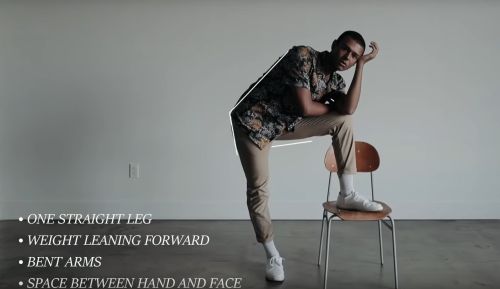
In the video we have some great ideas that help you to map out a great Portraiture session. This is straight advice aimed at getting you to a good quality completed portrait as directly as possible.

I have to add that the book advertised in the video is also a great book. It is packed with some excellent ideas and written in a simple and easy-to-read way. If you are interested in following up on the book I can highly recommend it. My copy is pretty dog-eared these days!


Portrait and Candid Photography: Photo Workshop This is a great book packed with lots of hints, tips and ideas like the ones below. A really worthwhile read.


Ten points at the core of good portraiture

In the video Erin Manning highlights the importance of the following ten points…

  1. Don’t fix your subject in the middle of the frame. Instead, think about the rule of thirds – a more dynamic outcome.
  2. Poses and “cheesy” words to force a smile are false and make the photo look strained.
  3. Make your clothes simple and un-distracting. Forget patterns and fussy details. Simple solid colours help the subject to stand out, not the clothes.
  4. Avoid straight on shots with a big flash. The open pupil in the eye will cause light to reflect back to the camera and show bright red eyes… You don’t want your subject to look like red-eyed monsters. Use red-eye reduction settings if your camera has them.
  5. Vary your poses, angles and heights. The more angles you get the more you are telling a story about your subject. Get them in many different ways.
  6. Use flash to help reduce harsh shadows. The sharp sunlight of the middle of the day is very unflattering. The use of fill-in flash softens the shadows bringing out the subjects character.
  7. Look for great quality of light. Remember that hard light (harsh edges and strong contrasts) is very unflattering. Shoot in the later afternoon or early morning to get soft light with better colours. Use shade to reduce hard light if you are forced to work in bright mid-day light.
  8. Don’t stand too close and use a wide angle lens. This exaggerates the nose. Stand away and zoom in. This reduces nose size and is much more flattering. (Great advice).
  9. Pay attention to the background. If it is too busy make sure there is nothing distracting. Check to make sure the background has not created odd effects like poles sticking out of heads and flowers in ears!
  10. Make sure you have enough battery capacity and memory card space to cover the whole session. You don’t want to lose any shots when you are in full swing.
Erin Manning’s Top 10 Dos and Don’ts for Great Portraits


Erin Manning


By Damon Guy (author and editor)

Netkonnexion

Damon Guy (Netkonnexion)

Damon is managing editor of Photokonnexion.com with professional experience in photography, writing, image libraries, and computing. He is also an experienced, webmaster and a trained teacher. Damon runs regular training for digital photographers who are just starting out.
See also: Editors ‘Bio’
By Damon Guy :: Profile on Google+

find out more...Photokonnexion tips by email
If you enjoyed this article please sign up for our
daily email service.
                                                 Find out more

The simple secrets of dodge and burn – post processing

• Dodge And Burn •

• Dodge And Burn
Important techniques for affecting the light and dark in an image. (Video below).
lynda.com on YouTube  External link - opens new tab/page

Dodge and burn – powerful light/shadow effects

Two of the oldest techniques in the photographic skill set are dodging and burning. In the old days of chemical baths and film developing they were the most effective way of changing the image out of camera. Simple stuff really. During the development of your film you allowed parts of the developing film to become overexposed. Other parts of the film you allowed to become underexposed. The effect on the final print was to increase the brightness in some areas of the film and darken others.

In modern post-processing we still use these techniques. Most post processing software packages have ways to create dodges (whitening or brighten) or burns (darkening or blacking). The aim of this? Well its simple really. If you have a picture and you want to do any of these things you need these techniques…

  • Increase/decrease the intensity of shadowy parts of the image
  • Increase/decrease the intensity of brighter parts of the image
  • Brighten the bright spots and darken the dark spots to increase contrast
  • Darken down intensely bright spots in the image to prevent distractions
  • Brighten the darker areas in the image to bring out detail
  • Pick out highlights

More after this…

find out more...Photokonnexion tips by email
Enjoying this article? Please sign up for our
daily email service.
                                                Find out more

Dodge and burn

Although this tutorial is based in PhotoShop, most of the techniques shown in this video can be used in most editing software. If your software does not have the same tools as those found in PhotoShop check your help files for more information.

You may have to do some trial and error experiments to get these techniques working – after all, the practice will give you control of your software. Trying out these skills will give you the basic command of light and dark in the post processing context. Dodging and burning are really important techniques. Watch the video for how the techniques are used.

Photoshop dodge and burn

lynda.com on YouTube  External link - opens new tab/page


By Damon Guy (author and editor)

Netkonnexion

Damon Guy (Netkonnexion)

Damon is managing editor of Photokonnexion.com with professional experience in photography, writing, image libraries, and computing. He is also an experienced, webmaster and a trained teacher. Damon runs regular training for digital photographers who are just starting out.
See also: Editors ‘Bio’
By Damon Guy :: Profile on Google+


Can you write? Of course you can!
Write for Photokonnexion...

We would love to have your articles or tips posted on our site.
Find out more…
Write for Photokonnexion.

Pure white featureless skys? How to tone them down…

• Cokin neutral density filters (graduated) •

• Cokin neutral density filters (graduated) •
A quality set of filters that can be adapted to fit any lens size.
Buy: Cokin H250A ND Grad Kit

When your sky is too bright its a problem!

You lose all or most of the detail and your foreground is starkly highlighted by the blown out sky. The way to overcome blow out like this is to use various techniques with neutral density filters. All landscapers come across this problem at some time. The best way to overcome the issue is to tackle it head on in-camera. The best way to do that is to use “graduated neutral density (ND) filters”.

What are ND filters?

Neutral density filters are glass filters that you reduce the incoming light. They do this without affecting the colours in your shot. For blown out skies you want to reduce only the incoming sky light and allow the foreground to expose properly. The Graduated ND filter will allow you to achieve that.

In the picture above you can see the top half of each filter is dark. The bottom half is uncoloured glass. The trick is to place the filter in front of your lens. Place it in such a way that the line separating the dark and light lies on the horizon between the ground (proper exposure) and the bright sky which will be toned down by the filter.

If the sky is blown out in your picture the light is brighter than the camera can cope with. Normally that will be two stops of light or more above your exposure of the ground. The ND grads. normally come in three strengths. ND2 (two stops), ND4 (four stops) and ND8 (eight stops). Each stop of filtration is equal to half of the total light. An ND2 reduces the light by a quarter. An ND8 will cut down the incoming light to 1/16th of the light.

Video – Graduated ND filters for Landscape Photography

In this short video Tony Sweet demonstrates how he balances the dynamic range of a landscape composition using a graduated ND grad. filter working in a wooded valley. He wants to brighten the foreground with a long exposure. This would lead to the distant trees being too bright and would show burnt out spots. He uses a great technique to make the right light conditions…

Recommended purchase

I have been using Cokin filters for years. They are high quality filters that fit into a filter mount screwed onto the front of your lens. I prefer this type of fitting. It is simple to change filters and you can adapt graduated filters to the position you want quite easily. Round filters are far less adaptable and tend to be much more expensive.

If you want to buy an ND grad set of filters here is the kit I recommend…
Cokin H250A ND Grad Kit

You will also need to buy an adaptor for your lens to fit the filter mount. You can buy them singly…
Cokin filter mounts and lens adaptors

You can also buy a complete adaptor kit so you can adapt your filters to fit any one of your lenses…


If you feel like going the the whole way you can buy a kit that will cater for all your filter needs (including mount and adaptors) try this great kit…


By Damon Guy (author and editor)

Netkonnexion

Damon Guy (Netkonnexion)

Damon is managing editor of Photokonnexion.com with professional experience in photography, writing, image libraries, and computing. He is also an experienced, webmaster and a trained teacher. Damon runs regular training for digital photographers who are just starting out.
See also: Editors ‘Bio’
By Damon Guy :: Profile on Google+


Can you write? Of course you can!
Write for Photokonnexion...

We would love to have your articles or tips posted on our site.
Find out more…
Write for Photokonnexion.